To switch from Docker Desktop safely, do it in this order: back up what lives inside Docker Desktop (images, volumes, containers), install the new engine next to it and move your data across, point the docker command at the new engine with a docker context, run your projects for a few days, and only then uninstall Docker Desktop and remove the files it leaves behind. Done in that order, nothing is lost, and going back is one command until the last step.
This post covers each step on a Mac and on Windows, what tends to break afterwards, and how to roll back. If you’ve already picked Kiri, the step-by-step for pointing docker at it is in Use your Docker commands, images and compose files with Kiri; this post is about leaving Docker Desktop, whichever engine you go to.
Still choosing? See Docker Desktop alternatives compared, and what Docker Desktop’s licence asks of companies in 2026.
What you take with you, and what you don’t
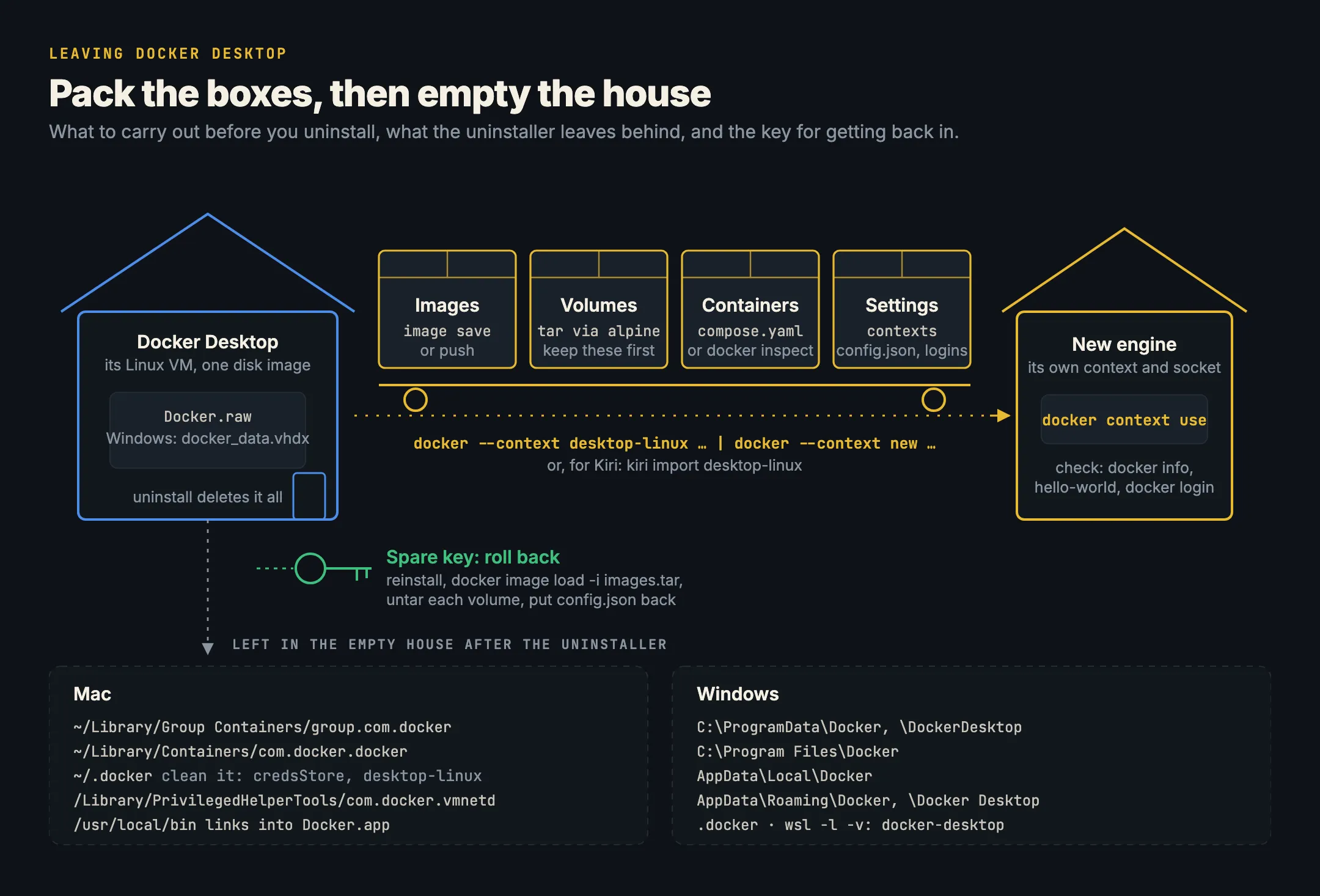
Anything in your project folders travels by itself: Dockerfiles, compose.yaml, .env files, scripts. What doesn’t travel is everything that lives inside Docker Desktop’s Linux VM, on its single disk image file:
- Images you built or pulled. Pulled ones can be pulled again from their registry; images you built locally and never pushed exist nowhere else.
- Named volumes, such as a database’s data. These are usually the one thing you really can’t lose.
- Containers, with their settings. Compose recreates them from the file, so only containers you started by hand with long
docker runlines need care. - Build cache, which you don’t need to keep.
Docker’s own uninstall page is blunt about it: uninstalling Docker Desktop deletes your local containers, images, volumes and other Docker data. So back up first.
Step 1: back up images, volumes and containers
Run these while Docker Desktop is still running and still your current context. First, see what’s there:
docker image ls
docker volume ls
docker ps -a
docker system df
Images. Save the ones you can’t pull again into one file. docker image save keeps every layer and tag:
docker image save -o images.tar web:dev worker:dev postgres:16Or push them to a private registry and pull them later. Both are what Docker suggests in its backup and restore guide.
Volumes. Copy each named volume into a tar file through a throwaway container. This is the same trick as the example in Docker’s volume docs, and it keeps file owners and permissions:
mkdir -p backup
for v in $(docker volume ls -q); do
  docker run --rm -v "$v":/from:ro -v "$PWD/backup":/to alpine \
    tar -C /from -cf "/to/$v.tar" .
done
That loop takes every volume, including anonymous ones with 64-character names. Delete the tar files you don’t need afterwards.
Containers. For anything Compose started, the compose.yaml is your backup. For hand-started containers, keep their settings so you can rebuild the docker run line:
docker inspect my-container > my-container.jsonNote that docker container commit saves a container’s filesystem changes as an image, but not the volumes attached to it.
Your docker settings. Note which contexts exist, and copy ~/.docker/config.json somewhere safe. Logins and contexts live under ~/.docker, and later steps touch it:
docker context ls
cp ~/.docker/config.json ~/docker-config.backup.json
Step 2: move your data to the new engine
Install the new engine next to Docker Desktop. Most engines add their own docker context and leave Docker Desktop’s alone, so you can use both at once and copy straight from one to the other with --context, no files needed.
With Kiri on a Mac, one command copies images, volumes and containers across and changes nothing in Docker Desktop:
kiri import desktop-linux --list   # see what would come across
kiri import desktop-linux
The Kiri walkthrough covers it in detail. For any other engine, pipe images and volumes between contexts yourself. Replace new with the new engine’s context name:
# images
docker --context desktop-linux image save postgres:16 | docker --context new image load

# one volume
docker --context new volume create shop_pgdata
docker --context desktop-linux run --rm -v shop_pgdata:/from:ro alpine tar -C /from -cf - . \
  | docker --context new run --rm -i -v shop_pgdata:/to alpine tar -C /to -xf -
Then start your projects on the new engine with docker compose up -d, which recreates the containers.
Step 3: switch docker contexts
The docker command sends every request to its current context, which is mostly a socket address. Docker Desktop’s is desktop-linux on a Mac. Switching engines means switching contexts:
docker context ls          # the current one has a *
docker context use kiri    # or your new engine's context
docker context show
Two things override the context, and both catch people out after a switch:
DOCKER_HOST. If it’s set in your shell profile, it wins over any context. Check withecho $DOCKER_HOST, and remove the line if it points at Docker Desktop./var/run/docker.sock. Some tools ignore contexts and only look at this path: Testcontainers, many IDE plugins, docker-py. On a Mac it belongs to Docker Desktop while Docker Desktop is installed.
Now live with the new engine for a few days. While Docker Desktop is still installed, docker context use desktop-linux takes you straight back.
Step 4: uninstall Docker Desktop on Mac
Stop any containers still running in Docker Desktop, then run its own uninstaller. In the app, it’s the Troubleshoot icon at the top right of the Dashboard, then Uninstall. From a terminal it’s:
/Applications/Docker.app/Contents/MacOS/uninstallThen move Docker.app to the Bin. Docker’s uninstall page says the command can fail with “operation not permitted” on ~/Library/Containers/com.docker.docker/; Docker Desktop is uninstalled anyway, and you can remove that folder after giving your terminal Full Disk Access in System Settings → Privacy & Security.
The files Docker Desktop leaves behind on a Mac
Docker lists these as the ones to delete by hand:
rm -rf ~/Library/Group\ Containers/group.com.docker
rm -rf ~/Library/Containers/com.docker.docker   # needs Full Disk Access
Docker’s list also includes rm -rf ~/.docker. Think before running that one: ~/.docker holds every engine’s contexts, your registry logins and CLI plugins, not only Docker Desktop’s. Two safer options:
- Keep
~/.dockerand clean it. Remove Docker Desktop’s context withdocker context rm desktop-linux, and edit~/.docker/config.jsonto delete the line"credsStore": "desktop". That line names Docker Desktop’s credential helper, and once the helper is gone,docker loginand pulls from private registries fail withdocker-credential-desktop: executable file not found in $PATH. This is one of the most common errors after an uninstall, as this Docker forum thread shows. - Delete it and let the new engine set itself up again. With Kiri,
kiri setuprecreates its context and puts Compose and buildx back.
Two more places are worth a look. Check each one with ls before deleting anything:
# links into the deleted Docker.app
ls -l /usr/local/bin | grep -i docker
# the privileged network helper
ls -l /Library/PrivilegedHelperTools/com.docker.vmnetd /Library/LaunchDaemons/com.docker.vmnetd.plist
Remove any /usr/local/bin links that point into /Applications/Docker.app. Users on the Docker forum report finding the com.docker.vmnetd helper months after uninstalling; if it’s there, delete both files with sudo rm.
With Docker Desktop gone, /var/run/docker.sock is free for the new engine. Kiri links it to itself with kiri setup --docker-socket, after asking for your password, so tools that only look there find Kiri.
Step 5: uninstall Docker Desktop on Windows
Remove Docker Desktop in Settings → Apps → Installed apps, or from PowerShell with its installer:
cd "C:\Program Files\Docker\Docker"
Start-Process 'Docker Desktop Installer.exe' -Wait uninstall
Docker’s uninstall page lists the folders to delete afterwards:
C:\ProgramData\Docker
C:\ProgramData\DockerDesktop
C:\Program Files\Docker
C:\Users\<you>\AppData\Local\Docker
C:\Users\<you>\AppData\Roaming\Docker
C:\Users\<you>\AppData\Roaming\Docker Desktop
C:\Users\<you>\.docker
The same warning about .docker applies as on a Mac: it holds your other contexts and logins too. Then check WSL for a leftover Docker Desktop distro, and remove it only if it’s still listed:
wsl -l -v
wsl --unregister docker-desktop
wsl --unregister deletes that distro’s disk for good, so run it only after your data is backed up or moved. Our post on Docker on Windows without Docker Desktop covers the engines that run there. Kiri on Windows serves Docker’s own pipe, \\.\pipe\docker_engine, while Docker Desktop isn’t running, so tools that look only there find it.
Step 6: check that everything works
Run these on the new engine, from a new terminal so your profile is read again:
docker context show                       # the new engine's context
echo $DOCKER_HOST                         # empty, or the new engine
docker info --format '{{.Name}} {{.ServerVersion}}'
docker run --rm hello-world
docker volume ls                          # your volumes are here
docker buildx ls                          # the * builder isn't desktop-linux
docker login                              # no credential helper error
docker compose up -d && docker compose ps # in a real project
Then run your test suite. Tests that use Testcontainers are a good check of the socket, because they look for /var/run/docker.sock rather than the context; Testcontainers on a Mac without Docker Desktop has the details.
What breaks after you switch, and the fix
Cannot connect to the Docker daemon. The context orDOCKER_HOSTstill points at Docker Desktop’s socket. Rundocker context ls,docker context use <new>, and check your shell profile. More causes in Cannot connect to the Docker daemon.docker-credential-desktop: executable file not found. Delete"credsStore": "desktop"from~/.docker/config.json, thendocker loginagain.docker buildfails or uses a missing builder.docker buildx lsshows a builder pinned to the old context.docker buildx use default, or remove it withdocker buildx rm <name>.kubectlpoints at a dead cluster. Docker Desktop’s Kubernetes leaves adocker-desktopcontext in~/.kube/config. Remove it withkubectl config delete-context docker-desktop. For a replacement cluster, see local Kubernetes on a Mac.- A tool still can’t find Docker. It looks only at
/var/run/docker.sockor the Windows pipe. Let the new engine take that path, or setDOCKER_HOSTfor that tool. - Features that were Docker Desktop’s own are gone: Extensions, its dashboard and its administration settings. Other engines bring their own window, or none.
How to roll back
Up to step 4, rolling back is docker context use desktop-linux. After uninstalling:
-
Reinstall Docker Desktop from Docker’s site.
-
Load your images:
docker image load -i images.tar. -
Restore each volume from its tar file:
docker volume create shop_pgdata docker run --rm -v shop_pgdata:/to -v "$PWD/backup":/from alpine \ tar -C /to -xf /from/shop_pgdata.tar -
Put your saved
~/.docker/config.jsonback if you deleted it, anddocker compose up -d.
If you copied Docker Desktop’s whole disk image before uninstalling (~/Library/Containers/com.docker.docker/Data/vms/0/data/Docker.raw on a Mac, %LOCALAPPDATA%\Docker\wsl\disk\docker_data.vhdx on Windows with WSL 2), Docker’s backup guide says you can put it back in the same place after reinstalling, with Docker Desktop stopped. That restores everything at once, but the file is large; the image and volume tar files are smaller and work with any engine.
Where Kiri fits
If you’re leaving because Docker Desktop feels heavy (see why Docker Desktop is slow on Mac), Kiri is one option: a free, open-source engine that serves the same Docker Engine API, so the commands above work unchanged. It installs next to Docker Desktop with its own kiri context, copies your data with kiri import desktop-linux, and gives its VM’s memory back when idle. It’s in beta, and it runs on Apple silicon Macs, Linux and Windows. Kiri vs Docker Desktop lists what it doesn’t do yet, and the Docker Desktop alternative page has the measured numbers. Get it from runkiri.com/download.
In short
- Uninstalling Docker Desktop deletes its images, volumes and containers. Back them up first with
docker image saveand a tar of each volume. - Install the new engine next to Docker Desktop, copy data across between contexts, and switch with
docker context use. - Keep both for a few days; until you uninstall, rolling back is one command.
- On a Mac, run
/Applications/Docker.app/Contents/MacOS/uninstall, then remove~/Library/Group Containers/group.com.dockerand~/Library/Containers/com.docker.docker. - Clean
~/.dockerrather than deleting it blindly: remove thedesktop-linuxcontext and the"credsStore": "desktop"line. - On Windows, uninstall from Settings, delete the listed folders, and check
wsl -l -vfor a leftoverdocker-desktopdistro. - Check with
docker info,hello-world,docker login,docker buildx lsand your own tests.