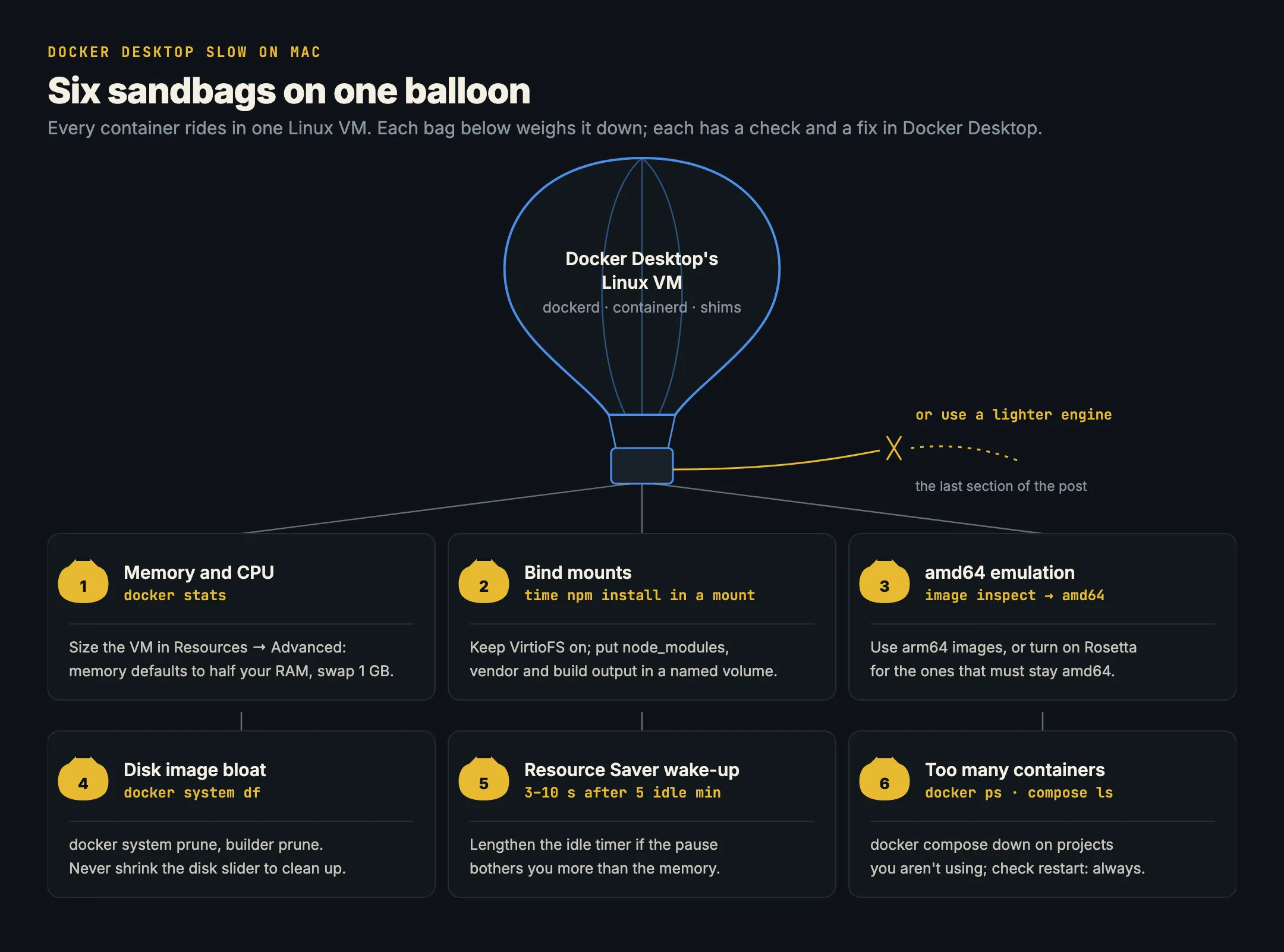
Docker Desktop is slow on a Mac for one root reason: macOS has no Linux kernel, so every container runs inside a Linux virtual machine, and everything you do crosses into that VM and back. When it feels slow, it’s almost always one of six things: the VM’s memory and CPU settings, file sharing for bind mounts, amd64 images being emulated, a full or bloated disk image, the VM waking from Resource Saver, or simply too many containers running. Each has a fix inside Docker Desktop itself, below, in the order worth checking. At the end, if you’d rather not tune it at all, there’s the lighter-engine option, with measured numbers.
New to the terms? Our basics explain image layers and containerd vs Docker, the engine inside the VM.
Why Docker Desktop is slow on Mac: the VM in the middle
Containers are Linux processes that share a Linux kernel. On a Mac, Docker Desktop boots a Linux VM through Apple’s Virtualization framework (or, on Apple silicon, its own Docker VMM, in beta; HyperKit on old Intel setups, now deprecated). Inside the VM it runs Docker’s engine: dockerd, containerd and a shim per container.
That VM is what you see in Activity Monitor as one large process. People search for it as com.docker.hyperkit or com.docker.virtualization, but whatever its name, its memory is the whole VM’s memory, all containers together, and its CPU is the sum of every container plus the engine. So “Docker is using 8 GB” usually means “the VM was allowed 8 GB and kept it”, not that Docker itself is leaking.
Every slow path below is a place where work crosses that VM boundary, or where the VM is short of something.
1. Memory and CPU: size the VM for your work
Docker Desktop’s memory limit is the RAM given to its VM, and it defaults to 50% of your Mac’s memory, with a 1 GB swap file, according to its settings reference. The CPU limit caps how many of your Mac’s cores the VM may use.
Both directions cause slowness:
- Too small: containers get killed for running out of memory, builds swap inside the VM, and everything crawls.
- Too big: the VM holds memory macOS wants back, the Mac starts swapping, and your editor and browser slow down along with Docker.
Check what the VM has and what your containers actually use:
docker info --format '{{.NCPU}} CPUs, {{.MemTotal}} bytes'
docker stats --no-stream --format 'table {{.Name}}\t{{.CPUPerc}}\t{{.MemUsage}}'
Add up the memory column, add room for builds (a large docker build can need a few GB on its own), and set Settings → Resources → Advanced → Memory limit to that, not to “as much as possible”. If a single container is greedy, cap it rather than growing the VM:
docker update --memory 1g --cpus 2 my-containeror in Compose, deploy.resources.limits. A runaway container at 100% CPU will make the whole VM, and your Mac’s fans, look like a Docker problem.
2. File sharing: keep VirtioFS, and keep heavy folders off bind mounts
A bind mount (-v ./src:/app) puts a folder from your Mac inside a container. Every file access crosses from the VM to macOS, which is cheap for one file and expensive for a hundred thousand. That’s why npm install, composer install, a Rails boot or a large git status inside a container can be many times slower than on the Mac itself.
First, check the setting. Settings → General → Choose file sharing implementation offers VirtioFS and gRPC FUSE; VirtioFS is the default, and Docker’s settings reference says it “has reduced the time taken to complete filesystem operations by up to 98%”. The choice appears with the Apple Virtualization framework VMM. If an old install still has gRPC FUSE, switch.
Then move the heavy, generated folders out of the bind mount and into a named volume, which lives on the VM’s own disk:
services:
  web:
    build: .
    volumes:
      - ./:/app                 # your source, edited on the Mac
      - node_modules:/app/node_modules   # stays inside the VM
volumes:
  node_modules:
The same works for vendor/, target/, .next/ and other build output. Your source stays editable on the Mac; the hundred thousand small files never cross the boundary.
Docker also has Synchronized file shares, which keep a copy of your folder in a cache inside the VM and sync changes both ways. Docker’s page on it says VirtioFS and gRPC FUSE don’t scale well for very large codebases. Check which Docker subscriptions include it before relying on it. We go deeper on this in Why Docker bind mounts are slow on Mac.
3. amd64 images: emulation is the slowest thing you can run
Apple silicon Macs are arm64. An image built only for amd64 still runs, but every instruction is translated, and that can be several times slower, especially for builds, databases and anything CPU-bound.
Find out what you’re running:
docker image inspect --format '{{.Os}}/{{.Architecture}}' postgres:16
docker ps --format '{{.Image}}' | xargs -n1 docker image inspect --format '{{.RepoTags}} {{.Architecture}}'
Fixes, best first:
- Use the arm64 variant. Most official images publish one;
docker pullpicks it unless something forces amd64. Look forplatform: linux/amd64in yourcompose.yamlor--platform linux/amd64in scripts, and drop it if the image has an arm64 build. - Build multi-platform images for your own services with
docker buildx build --platform linux/amd64,linux/arm64. - Turn on Rosetta for what must stay amd64: Settings → General → Use Rosetta for x86_64/amd64 emulation on Apple Silicon. Docker’s settings reference lists it as off by default. Note that Docker VMM doesn’t support Rosetta yet, so amd64 emulation there is slow; use the Apple Virtualization framework VMM if you depend on amd64 images.
Our amd64 images on Apple silicon post explains how the translation works.
4. Disk image bloat: prune what you don’t use
Docker Desktop keeps all images, containers, volumes and build cache in one disk image file on your Mac. Its Mac FAQ shows it at ~/Library/Containers/com.docker.docker/Data/vms/0/data/Docker.raw; Settings → Resources → Advanced shows its location, maximum size and real size. A disk that’s nearly full makes pulls, builds and database writes slow, then makes them fail.
See where the space went:
docker system df
docker system df -v   # per image, container and volume
Then clean up, from the safest command to the broadest:
docker container prune        # stopped containers
docker image prune            # dangling (untagged) images
docker builder prune          # build cache
docker image prune -a         # every image no container uses
docker system prune           # stopped containers, unused networks, dangling images, build cache
Leave docker volume prune and docker system prune --volumes for last and read what they’ll remove: volumes hold data. Docker’s FAQ says space is freed on the Mac only when images are deleted, not when files are deleted inside running containers, and that reclaiming can take a few minutes. To check the file’s real size on disk, rather than its maximum:
ls -klsh ~/Library/Containers/com.docker.docker/Data/vms/0/data/Docker.rawDon’t shrink the Disk image size slider as a cleanup step: Docker’s FAQ warns that reducing it deletes the disk image, with every container and image in it. And don’t move Docker.raw in Finder; change Disk image location in Settings instead.
5. Resource Saver: the pause after a coffee break
If Docker is fast all day but the first command after a break hangs for several seconds, that’s Resource Saver. It’s on by default: after 5 minutes with no containers running, Docker Desktop stops the whole Linux VM on a Mac to give memory and CPU back, and restarting it takes 3–10 seconds, per Docker’s Resource Saver page.
That’s a good trade on battery. If the wake-up bothers you more than the memory does, lengthen the idle timer in Settings → Resources, or set autoPauseTimeoutSeconds in settings-store.json for a value the menu doesn’t offer. Turning it off entirely keeps the VM, and its memory, up all day.
6. Too many containers
Each Compose project you up and forget keeps running: databases, queues, caches, each with its own memory and a little CPU, all inside the one VM. Five forgotten projects can hold more memory than the one you’re working on.
docker ps --format 'table {{.Names}}\t{{.Status}}\t{{.Label "com.docker.compose.project"}}'
docker compose ls
Stop what you’re not using, per project:
docker compose -p old-project downCheck restart policies too. Containers with restart: always or unless-stopped come back every time the VM starts, which also keeps Resource Saver from ever kicking in.
Or use a lighter engine
If you’ve tuned all six and it still feels heavy, the engine itself is the remaining variable. Several engines run the same docker commands on a Mac with less in the VM. Kiri is one: it serves the Docker Engine API with one daemon and one small agent in the VM, without dockerd, containerd or a shim per container.
Kiri’s benchmarks lead with one number: through the Docker API, Kiri starts and removes a container in 2.55 ms, against 213 ms for Docker Desktop (median of 30 on one Apple silicon Mac, 24 October 2026). A later run put four engines on one Apple silicon Mac, each limited to the same 2 CPUs and 8 GB and driven by the same docker CLI, on 2 November 2026 (Kiri 0.1.13, Docker Desktop 4.90.0). Medians from that run:
| Measurement | Kiri | Docker Desktop |
|---|---|---|
docker run --rm alpine true |
22 ms | 178 ms |
| Containers started in parallel | 88.9 /s | 11.4 /s |
| 20 containers started | 19.7 /s | 3.2 /s |
| 200 MB out of a container (stdout) | 223 MB/s | 45 MB/s |
| Bind mount read, 1 GB | 1724 MB/s | 1354 MB/s |
Not every row goes Kiri’s way: in the same run, Colima read bind mounts fastest (5235 MB/s) and OrbStack accepted more new HTTP connections, and the page says so.
On memory, Kiri’s VM gives memory it isn’t using back to macOS while it runs, through a memory balloon, and powers off after 60 seconds with nothing running. It boots again in about a tenth of a second (112 ms measured), so the coffee-break pause from section 5 isn’t there. Docker Desktop’s own memory use hasn’t been measured in Kiri’s benchmarks, so we don’t compare it here.
Kiri is in beta, needs an Apple silicon Mac, and doesn’t do everything Docker Desktop does; Kiri vs Docker Desktop lists the gaps. It installs next to Docker Desktop, so you can compare on your own projects: download it, then docker context use kiri. If you decide to move for good, How to switch from Docker Desktop covers backing up and uninstalling cleanly, and Docker Desktop alternatives compared weighs the other options.
In short
- Docker Desktop runs every container in one Linux VM; slowness comes from crossing into it or starving it.
- Size the VM’s memory to what
docker statsshows you use (the default is half your Mac’s RAM), and cap greedy containers. - Keep VirtioFS on and move
node_modules,vendorand build output into named volumes. - Use arm64 images; turn on Rosetta for amd64 ones you can’t avoid.
docker system df, then prune build cache and unused images; never shrink the disk slider to clean up.- The first-command pause after 5 idle minutes is Resource Saver restarting the VM (3–10 seconds); lengthen the timer if it bothers you.
- Stop Compose projects you aren’t using.
- Or try a lighter engine: in Kiri’s benchmarks, a container starts in 2.55 ms through the API (213 ms on Docker Desktop), and a full
docker runtook 22 ms against 178 ms at the same 2 CPUs and 8 GB.