Part of our container basics: image layers · registries · runc · Kubernetes
When you run docker pull nginx, the output shows several lines downloading at once, each with its own ID. Those are layers. A container image isn’t one big file; it’s an ordered stack of them, plus a little metadata. Knowing how that stack works explains why builds are fast or slow, why images are big, and why secrets leak.
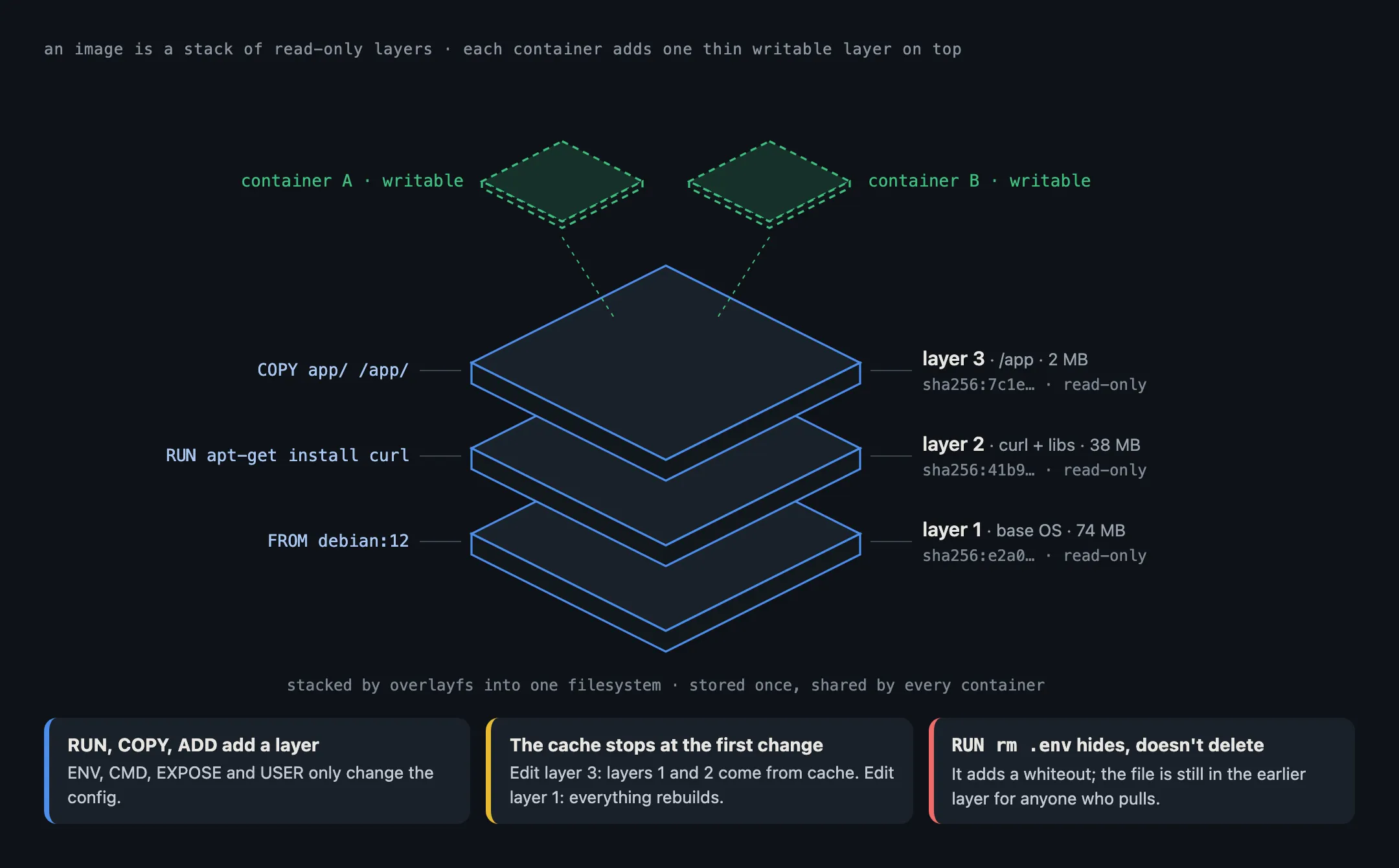
What an image is made of
An image has three kinds of parts:
- Layers. Each layer is a compressed tar archive of files: the files that were added or changed at one step of the build. The first layer is usually a base like Debian or Alpine; later layers add your packages and your code.
- A config. A small JSON file with everything that isn’t a file: the command to run, environment variables, the working directory, the user, and the list of layers in order.
- A manifest. The table of contents: which config and which layers make up this image, each one named by its digest, a SHA-256 hash of its contents.
Because every part is named by the hash of its contents, a layer’s name is its fingerprint. Two images built on the same debian:12 base share that layer exactly, so your machine downloads and stores it once. You can see an image’s layers with docker history nginx or docker image inspect nginx.
Where layers come from
In a Dockerfile, each instruction that changes files creates a new layer:
FROM debian:12                         # the base image's layers
RUN apt-get update && apt-get install -y curl   # a layer with curl and its files
COPY app/ /app/                        # a layer with your code
ENV PORT=8080                          # no layer: only changes the config
CMD ["/app/server"] # no layer: only changes the configRUN, COPY and ADD add layers. ENV, CMD, EXPOSE and USER only change the config.
How layers stack when a container runs
The layers are never merged into one copy. When a container starts, the runtime (on Linux usually through overlayfs) stacks them: the base at the bottom, each later layer on top, and the container sees the combined result as one filesystem. If two layers contain the same path, the upper one wins.
All image layers are read-only. Each container gets one extra, empty, writable layer on top. When the container changes a file from the image, the file is first copied up into that writable layer and changed there (copy-on-write). So a hundred containers from the same image share one copy of the image on disk, and each one only uses space for what it changed. When the container is removed, its writable layer goes with it, which is why you use volumes for data you want to keep.
Why the order of your Dockerfile matters
The build cache works layer by layer. If an instruction and its inputs haven’t changed, the builder reuses the layer from last time. As soon as one layer changes, every layer after it is rebuilt.
That’s why Dockerfiles copy the dependency list first and the code last:
COPY package.json package-lock.json ./
RUN npm ci              # cached until the dependency list changes
COPY . .                # changes on every commit, but only this layer rebuilds
Put it the other way round and every code change reinstalls all your dependencies.
Deleting a file doesn’t make the image smaller
A later layer can’t change an earlier one. When you delete a file in a later step, the new layer just records a whiteout, a marker that hides the file. The file is still in the earlier layer, and still downloaded with the image.
That has a security side. If a build step copies in a key or a .env file and a later step deletes it, anyone who pulls the image can unpack the earlier layer and read it. Use build secrets (RUN --mount=type=secret) for credentials during a build, and multi-stage builds to keep only the finished output in the final image.
In short
- An image is a stack of read-only layers plus a config, listed in a manifest.
- Every layer is named by its content hash, so identical layers are stored and downloaded once.
- At run time the layers are stacked into one view, with a writable layer on top for each container.
- The build cache reuses layers until the first change, so put what changes most at the bottom of the Dockerfile.
- Deleting a file in a later layer hides it but doesn’t remove it.
Next in the basics: where those layers live, in container registries.