You can run Docker on Windows without Docker Desktop. The usual way is to install Docker Engine, the free and open-source engine, inside WSL 2 (Windows Subsystem for Linux), then call it from PowerShell with wsl docker … or point a Windows docker.exe at it. If you’d rather have an app do the setup, Podman, Rancher Desktop and Kiri all run Linux containers in WSL 2 too. This guide walks through the manual install first, then the other options, then the one case none of them covers: Windows containers.
New to some of the terms? Our container basics explain them: image layers, registries, runc and containerd vs Docker.
Why people run Docker without Docker Desktop
Docker Desktop is Docker, Inc.’s app: a window, a VM, Docker’s engine and extra tools in one installer. Two things push people off it on Windows:
- The licence. Docker Desktop is free for personal use, education, non-commercial open source and small businesses, which Docker defines as “fewer than 250 employees AND less than $10 million in annual revenue”. Larger companies need a paid subscription (Docker Desktop licence). We cover the details in Docker Desktop’s licence in 2026.
- Weight. Some people only want
docker runanddocker compose, without a desktop app running all day.
Docker Engine itself is not Docker Desktop. On Linux it’s a normal package with no licence fee, and WSL 2 gives Windows a real Linux kernel to install it on.
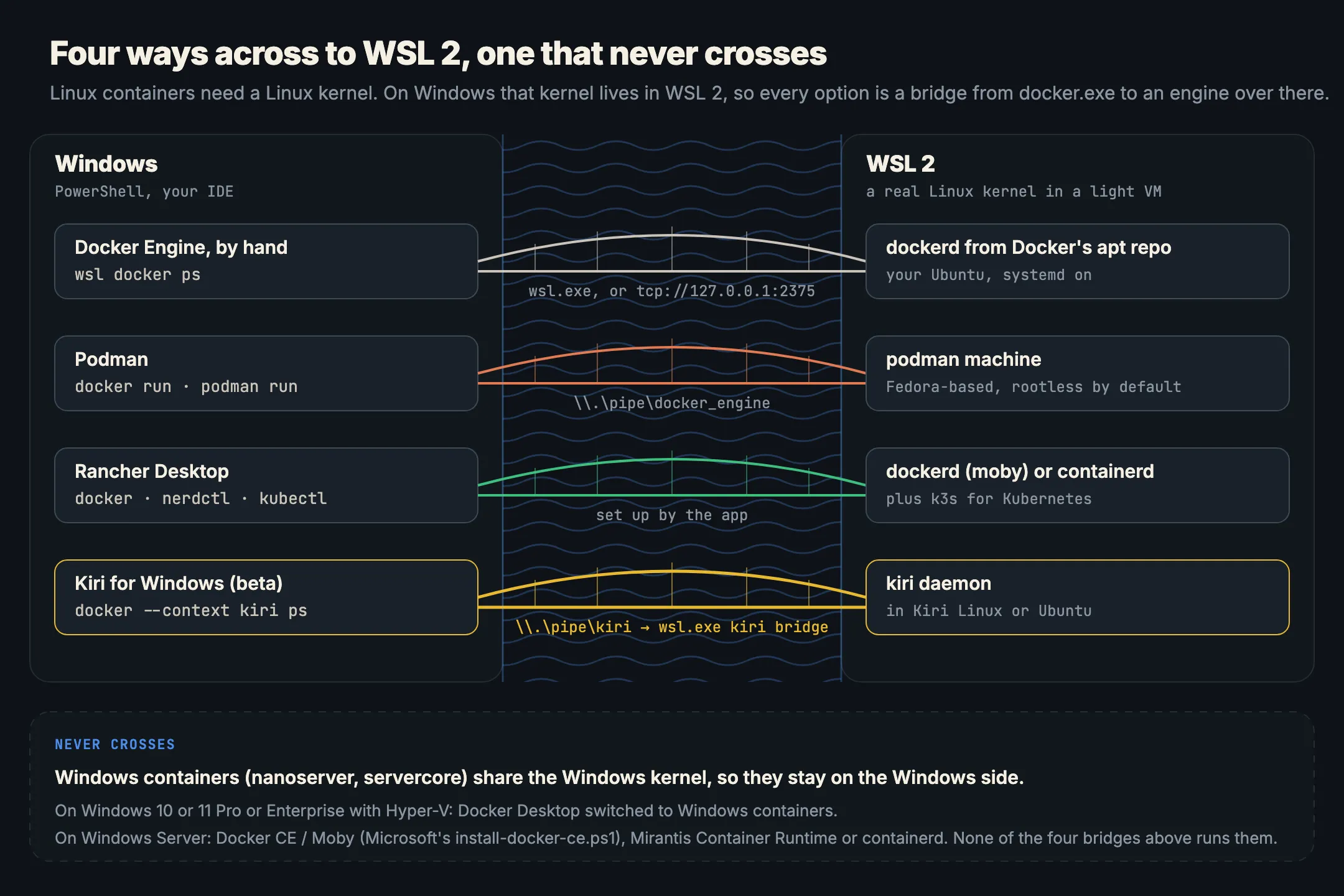
Option 1: install Docker in WSL 2 without Docker Desktop
This is the do-it-yourself route: Docker’s own engine, installed from Docker’s own apt repository, in an Ubuntu you control. It takes about ten minutes.
Step 1. Install WSL 2 and Ubuntu
In PowerShell as administrator:
wsl --installRestart when Windows asks. wsl --install installs WSL 2 and Ubuntu by default (Microsoft: install WSL). Open Ubuntu from the Start menu and create your Linux user.
Step 2. Check that systemd is on
Docker’s packages start the engine as a systemd service. Microsoft says systemd is the default for the current Ubuntu installed by wsl --install (WSL and systemd). Check inside Ubuntu:
ps -p 1 -o comm= # prints: systemdIf it prints init instead, turn systemd on, then restart WSL from PowerShell with wsl --shutdown:
sudo tee /etc/wsl.conf <<'EOF'
[boot]
systemd=true
EOF
Step 3. Add Docker’s apt repository
These are the commands from Docker’s Ubuntu install page, which supports Ubuntu 22.04, 24.04, 26.04 and 26.10 (64-bit):
sudo apt update
sudo apt install ca-certificates curl
sudo install -m 0755 -d /etc/apt/keyrings
sudo curl -fsSL https://download.docker.com/linux/ubuntu/gpg -o /etc/apt/keyrings/docker.asc
sudo chmod a+r /etc/apt/keyrings/docker.asc

sudo tee /etc/apt/sources.list.d/docker.sources <<EOF
Types: deb
URIs: https://download.docker.com/linux/ubuntu
Suites: $(. /etc/os-release && echo "${UBUNTU_CODENAME:-$VERSION_CODENAME}")
Components: stable
Architectures: $(dpkg --print-architecture)
Signed-By: /etc/apt/keyrings/docker.asc
EOF

sudo apt update
Step 4. Install Docker Engine, Compose and buildx
sudo apt install docker-ce docker-ce-cli containerd.io docker-buildx-plugin docker-compose-pluginThat’s the engine (dockerd), the docker CLI, containerd, and the buildx and Compose plugins, so docker compose works straight away.
Step 5. Run docker without sudo
The install creates a docker group with nobody in it. Add yourself, as Docker’s post-install steps describe, then open a new Ubuntu window:
sudo usermod -aG docker $USER
# close the window, open a new one, then:
docker run --rm hello-world
Being in the docker group is the same as having root on that Ubuntu, so only add accounts you trust.
Step 6. Use it from Windows
Docker now runs inside Ubuntu. To use it from PowerShell, you have two choices.
The simple way: wsl docker. WSL runs Linux commands from Windows when you put wsl in front of them, in the same working folder (Microsoft: run Linux tools from Windows):
wsl docker ps
wsl docker compose up -d
To type plain docker, add a function to your PowerShell profile (notepad $PROFILE):
function docker { wsl docker @args }Paths you pass are Linux paths, so C:\code\app is /mnt/c/code/app.
The Windows way: docker.exe and DOCKER_HOST. Some tools want a real docker.exe on Windows. Docker publishes static Windows binaries at download.docker.com/win/static/stable/x86_64; the zip holds docker.exe and dockerd.exe (binaries page). Keep only docker.exe and put it on your PATH. Then make the engine in WSL listen on a local TCP port too. In Ubuntu, run sudo systemctl edit docker.service and add:
[Service]
ExecStart=
ExecStart=/usr/bin/dockerd -H fd:// -H tcp://127.0.0.1:2375
sudo systemctl daemon-reload
sudo systemctl restart dockerWSL forwards localhost from Windows into the distro (WSL networking), so in PowerShell:
docker context create wsl --docker "host=tcp://localhost:2375"
docker context use wsl
docker versionOne more caveat from Kiri’s Windows docs: WSL’s localhost relay drops TCP half-closes, which docker run and docker attach rely on, so a command can lose its output this way (Kiri on Windows). If that bites you, go back to wsl docker.
What to know about this setup
- The engine runs only while WSL does. Microsoft notes that systemd services don’t keep a WSL instance alive. When WSL shuts down, so does Docker; open Ubuntu (or run any
wslcommand) to start it again. - Keep projects in the Linux file system. Microsoft recommends
/home/<you>/projectover/mnt/c/...for speed when you work from Linux (working across file systems). Bind mounts of/mnt/cfolders are the slow path. - Updates come from apt.
sudo apt update && sudo apt upgradeupdates the engine.
Option 2: Podman
Podman is an open-source container engine (Apache-2.0) from the Containers project, with its own podman CLI. On Windows, “each Podman machine is backed by a virtualized Windows Subsystem for Linux (WSLv2) distribution” (Podman install); Hyper-V is the other provider.
Per the Podman for Windows guide: install WSL first (wsl --install), download the .msi from Podman’s GitHub releases, then:
podman machine init
podman machine start
podman run --rm docker.io/library/hello-world
The machine is Fedora-based and starts rootless by default. Podman also answers the Docker API on \\.\pipe\docker_engine, Docker’s default pipe, so a docker.exe works without settings if nothing else holds that pipe. If something does, set $env:DOCKER_HOST = "npipe:////./pipe/podman-machine-default". The WSL provider needs WSL 2.5.1 or later.
Pick Podman if you want rootless containers by default or already use it on Linux servers.
Option 3: Rancher Desktop
Rancher Desktop is an open-source (Apache-2.0) desktop app for containers and Kubernetes. You choose the engine: dockerd (moby) for the regular docker CLI, or containerd with nerdctl. Kubernetes comes built in through k3s.
Its installation page lists Windows 11 (Home included) or Windows Server 2025, with WSL installed before you run the .msi, and recommends 8 GB of memory and 4 CPUs. You can use it without admin rights, but an administrator has to install its Privileged Service, or exposed ports are limited to 127.0.0.1.
Pick Rancher Desktop if you want a local Kubernetes cluster as well as Docker, in one app.
Option 4: Kiri for Windows
Kiri is our open-source container engine. Kiri for Windows is in beta. Here’s what its Windows docs say:
- Install. Two per-user
.msiinstallers on the download page, one for x64 and one for ARM PCs, for Windows 10 and 11. No administrator is needed to install. The installers aren’t code-signed yet, so Windows asks you to confirm. - First run. A five-step setup in Kiri’s window: WSL if the PC doesn’t have it (one administrator approval and a restart), then a Linux for the engine. That’s either Kiri Linux, a small Alpine-based distro inside the installer, or Ubuntu 26.04. Then the engine, then the
dockerCLI, Compose and buildx, each checked against a pinned SHA-256. - How docker reaches it.
kiri-win.exeserves the Docker API on the named pipe\\.\pipe\kiri, thekiridocker context. One long-livedwsl.exe -u root -- kiri bridgecarries every connection to the daemon’s socket in WSL. Kiri needs no change to WSL’s or Windows’ network settings and opens no ports. - Next to Docker Desktop. Kiri’s
binfolder goes at the end of yourPATH, so an existingdockerkeeps winning. Kiri only becomes docker’s default context when no other Docker is found.
docker --context kiri run --rm hello-world
docker context use kiri      # make it the default
On one Windows 11 PC, measured on 25 October 2026, docker run --rm alpine true took a median of 78 ms on Kiri against 491 ms on Docker Desktop, from PowerShell with the same docker CLI and warm images (benchmarks). That’s one machine; your numbers will vary. Like every option here, Kiri runs Linux containers only. More on the Docker on Windows page.
Windows containers vs Linux containers
Most images on Docker Hub are Linux containers: they need a Linux kernel, which is why every option above runs in WSL 2. Windows containers (images built on nanoserver or servercore) need a Windows kernel, and none of the WSL options can run them.
Microsoft’s container setup guide lists two ways:
- Windows 10 or 11 Pro or Enterprise, Hyper-V on: Docker Desktop, switched to Windows containers. Microsoft’s guide only names Docker Desktop for client Windows.
- Windows Server: Docker CE / Moby with Microsoft’s
install-docker-ce.ps1script, the Mirantis Container Runtime, or containerd withnerdctl. Docker’s static Windows binaries are also for this case; Docker says they “only provide the ability to run native Windows containers (not Linux containers)”.
So if you build .NET Framework apps into Windows images on a Windows 11 laptop, Docker Desktop is still the practical choice. Everyone building Linux images can leave it.
Which should you use?
- You want Docker’s own engine and don’t mind a terminal: Docker Engine in WSL 2, used through
wsl docker. It’s free and it’s what your Linux servers run. - You want rootless containers, or use Podman elsewhere: Podman.
- You want Kubernetes and Docker in one app: Rancher Desktop.
- You want an installer that sets up WSL, the engine and the Docker tools, with a window and tray icon: try Kiri, keeping in mind it’s in beta.
- You need Windows containers on Windows 10 or 11: stay on Docker Desktop.
Comparing more tools, or moving off Docker Desktop for good? See Docker Desktop alternatives compared and How to switch from Docker Desktop. If docker can’t find an engine after the switch, Cannot connect to the Docker daemon walks through the fixes. On a Mac, the equivalent guide is Docker Compose on Mac without Docker Desktop.
In short
- Linux containers on Windows need WSL 2, whichever tool you pick.
- Docker Engine installs in WSL 2 from Docker’s apt repo in six steps:
wsl --install, check systemd, add the repo,apt install docker-ce …, join thedockergroup, runhello-world. - Reach it from Windows with
wsl docker …, or withdocker.exeand atcp://localhost:2375context, which has no authentication. - Podman, Rancher Desktop and Kiri do the setup for you. Podman serves Docker’s default pipe, Rancher Desktop adds k3s, and Kiri (beta) brings its own Docker tools on
\\.\pipe\kiri. - Windows containers need a Windows kernel: Docker Desktop on Windows 10 or 11 Pro or Enterprise, or Docker CE / Moby on Windows Server.