You typed docker ps and got “Cannot connect to the Docker daemon at unix:///var/run/docker.sock. Is the docker daemon running?” The docker command is only a client. It sends every request to an engine (the daemon) through a socket, a file that works like a phone line between two programs. This error means the client dialled /var/run/docker.sock and nobody answered: either nothing is running, or something is running but listening somewhere else.
The quick answer: run echo $DOCKER_HOST and docker context ls first, because a stale setting or the wrong context causes it on every system. If both look right, the engine is stopped or its socket isn’t where the client looks, and the fix depends on your system. Each cause below has a check and a fix.
New to the moving parts? containerd vs Docker explains what the daemon is and what sits underneath it.
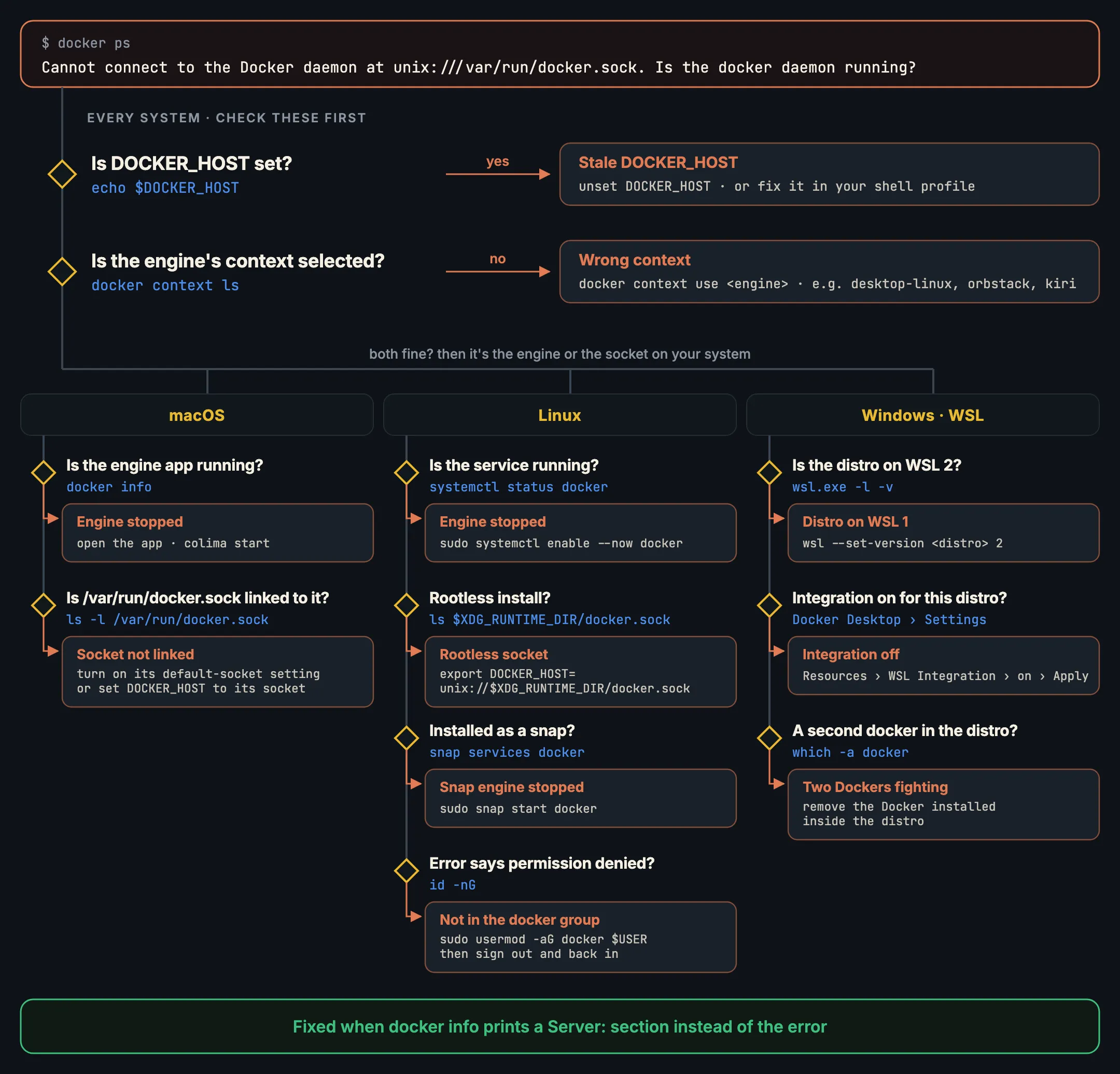
Is the docker daemon running? A 30-second check
Start with one command that tells you whether the client reaches any engine at all:
docker infoIf the output has a Server: section with a version, you’re connected and the problem is elsewhere. If it prints the error, look at the address in the message. It says where the client tried to connect:
unix:///var/run/docker.sock: the default address. Either noDOCKER_HOSTand no context point elsewhere, or the client was told to use the default.- Any other address, such as
unix:///Users/you/.colima/default/docker.sockortcp://…: something told the client to look there. Go to the first two causes.
Then run the two checks that apply on every system.
Cause 1: DOCKER_HOST is set to something stale
DOCKER_HOST is an environment variable that overrides everything else. Docker’s docs say the environment variables override the context chosen with docker context use (Docker contexts). An old line in your shell profile, left over from a removed engine or a CI script, points every docker command at a socket that no longer exists.
Check:
echo $DOCKER_HOST
grep -n DOCKER_HOST ~/.zshrc ~/.bashrc ~/.profile 2>/dev/null
Fix: if it’s set and wrong, unset it for this shell, then remove or correct the line in your profile:
unset DOCKER_HOST
docker info
DOCKER_CONTEXT works the same way, so check that one too.
Cause 2: the wrong docker context
A context is a named address for an engine. Most engines on a Mac add their own: Docker Desktop’s is desktop-linux, OrbStack’s is orbstack (OrbStack docs), rootless Docker on Linux sets up rootless (Docker docs), and Kiri’s is kiri. The context called default means /var/run/docker.sock. If you’re on default and your engine doesn’t answer there, you get this error.
Check:
docker context ls      # the current one has a *
docker context show
Fix: switch to the context of the engine you actually run:
docker context use desktop-linux # or orbstack, colima, rootless, kiriOn a Mac
The engine isn’t running
On a Mac, containers run in a Linux VM that an app starts. If the app isn’t running, there’s no daemon. Docker Desktop and OrbStack are apps you open; Colima starts from the terminal.
Check: docker info. Then look at the menu bar or run colima status.
Fix: open the app, or:
colima startThe app’s socket isn’t linked to /var/run/docker.sock
Mac engines keep their real socket in your home folder, and /var/run/docker.sock is only a symbolic link to it, if anything made one. Docker Desktop’s socket is ~/.docker/run/docker.sock; the link at /var/run/docker.sock comes from the default Docker socket option under Settings → Advanced, and without it you may need to set DOCKER_HOST yourself (Docker Desktop permissions). OrbStack makes the link only for users with administrator rights. Colima’s socket is $HOME/.colima/default/docker.sock.
Check:
ls -l /var/run/docker.sockNo such file, or a link to an engine you’ve uninstalled, means tools that go straight to the default path can’t find your engine.
Fix: turn on the app’s socket setting, or point the tool at the real socket:
export DOCKER_HOST="unix://$HOME/.colima/default/docker.sock"   # Colima
export DOCKER_HOST="unix://$HOME/.docker/run/docker.sock"       # Docker Desktop
If you run Kiri, its socket is ~/.kiri/run/docker.sock behind the kiri context. Kiri links /var/run/docker.sock to itself only when no other engine has that path; it never replaces a socket another engine owns. kiri setup --docker-socket makes the link (macOS asks for your password), and kiri ps always reaches Kiri, whatever context is selected (install docs).
On Linux
The service is stopped
On Linux the daemon is a system service. After a reboot it only comes back if it’s enabled.
Check:
systemctl status dockerFix: start it now and at every boot (Linux post-install):
sudo systemctl enable --now docker.service containerd.serviceIf it fails to start, journalctl -u docker -n 50 shows why.
You’re running rootless Docker
Rootless Docker runs the daemon as your user, with its socket under your runtime directory, not in /var/run. Docker’s installer prints the line to add, for example export DOCKER_HOST=unix:///run/user/1000/docker.sock (rootless mode).
Check:
ls -l $XDG_RUNTIME_DIR/docker.sock
systemctl --user status docker.service
Fix: start the user service and point the client at it:
systemctl --user start docker.service
export DOCKER_HOST=unix://$XDG_RUNTIME_DIR/docker.sock
Or use the rootless context the installer made: docker context use rootless.
Docker came from the snap
Ubuntu offers Docker as a snap (sudo snap install docker), which runs its own daemon under snapd. If that service is stopped, or you also installed Docker from apt, the two get in each other’s way.
Check:
snap list docker
sudo snap services docker
which -a docker
Fix: start the snap’s service, and keep only one Docker:
sudo snap start dockerThe snap’s README adds two catches (docker-snap): files Docker needs should live under your $HOME, and if you create the docker group while the snap is running, you reload it with sudo snap disable docker then sudo snap enable docker.
Permission denied: the docker group
If your message reads “permission denied while trying to connect to the Docker daemon socket”, the daemon is running and you aren’t allowed to open its socket. It’s owned by root and the docker group. sudo docker ps working while docker ps fails confirms it.
Check:
ls -l /var/run/docker.sock
id -nG    # is "docker" in the list?
Fix (Linux post-install):
sudo groupadd docker
sudo usermod -aG docker $USER
newgrp docker        # or sign out and back in
docker run hello-worldDon’t “fix” it with sudo chmod 666 /var/run/docker.sock. That hands root to every user and process on the machine, and resets at the next restart anyway.
On Windows with WSL
Native Windows clients talk to a named pipe, so the unix:///var/run/docker.sock version of the error usually comes from inside a WSL distro, where the docker command finds no engine.
The distro runs on WSL 1
Docker Desktop’s integration needs WSL 2 (Docker Desktop WSL 2).
Check in PowerShell:
wsl.exe -l -vFix: convert the distro, replacing Ubuntu with its name from the list:
wsl --set-version Ubuntu 2WSL integration is off for this distro
Docker Desktop only reaches the distros you pick. Open Settings → Resources → WSL Integration, turn on your distro, then press Apply. Restart the distro’s terminal afterwards.
Two Dockers in one distro
If you once ran apt install docker.io inside the distro, its docker and its own stopped daemon can shadow Docker Desktop’s. Docker’s docs say to remove any Docker Engine or CLI installed directly in the distro before using Docker Desktop, because “running both can cause conflicts”.
Check:
which -a dockerFix: remove the in-distro package (sudo apt remove docker.io or docker-ce), or, if you meant to run Docker Engine inside WSL without Docker Desktop, start it there with sudo service docker start and leave integration off.
If you’d rather not run Docker Desktop on Windows at all, see Docker on Windows without Docker Desktop. Kiri’s Windows engine runs in its own WSL 2 distro and serves the Docker API on the \\.\pipe\kiri named pipe, for the docker CLI in PowerShell (Kiri on Windows).
Running more than one engine
Most repeat cases of this error come from having two engines, or having had one. Each has its own socket, and only one can own /var/run/docker.sock. A few habits keep it straight:
- Pick one default with
docker context use, and don’t also setDOCKER_HOSTin your profile. - For a one-off command on another engine, use
docker --context <name> …. - For tools that ignore contexts, set
DOCKER_HOSTper project, in a.envor the IDE’s settings, not globally.
Moving off Docker Desktop? Switch from Docker Desktop covers the context switch, and Use your Docker commands with Kiri shows the kiri context in practice. If the error comes from a test suite, Testcontainers on a Mac without Docker Desktop and What is Testcontainers? explain how it finds an engine. Kiri itself is a download away for Mac, Linux and Windows.
In short
- The error means the client dialled
/var/run/docker.sockand no engine answered.docker infoshows whether you’re connected. - Check
DOCKER_HOSTanddocker context lsfirst, on every system. Environment variables beat the context. - Mac: start the engine app, and remember
/var/run/docker.sockis only a link that the app may not have made. SetDOCKER_HOSTto the app’s real socket for tools that ignore contexts. - Linux:
sudo systemctl enable --now docker; rootless uses$XDG_RUNTIME_DIR/docker.sock; snap usessudo snap start docker; “permission denied” means thedockergroup, which is root-equivalent. - WSL: the distro must be on WSL 2, integration on for that distro, and only one Docker inside it.
- Fixed when
docker infoprints aServer:section.