Running amd64 Docker images on Apple Silicon works: an M1, M2, M3 or M4 Mac runs linux/amd64 containers by translating their x86-64 code to arm64 as it runs. Pass --platform linux/amd64 (or set it in Compose), make sure your engine uses Rosetta rather than QEMU for the translation, and most images just work, a little slower than native. The rest of this post explains the warning you probably came here with, what Docker decides when it pulls, and how to stop needing emulation at all by building images for both architectures.
New to some of the terms? Our basics cover image layers and registries.
“The requested image’s platform (linux/amd64) does not match the detected host platform”
This is the line most people search for:
WARNING: The requested image's platform (linux/amd64) does not match the detected host platform (linux/arm64/v8) and no specific platform was requestedIt’s a warning, not an error. It means three things at once:
- Your Mac’s Linux VM is arm64 (
linux/arm64/v8), because Apple silicon is an Arm chip. - The image you asked for only had an amd64 build, so that’s what you got.
- You didn’t say
--platform, so Docker is pointing out that the container will run under emulation.
If the container then works, you can silence the warning by asking for amd64 on purpose (next sections). If it fails with exec format error, there’s no emulator registered in the VM at all, and the engine can’t run x86-64 programs; turning on Rosetta in your engine fixes that.
What a platform is, and how a pull picks one
A platform is an operating system plus a CPU architecture, written os/arch[/variant]: linux/amd64, linux/arm64/v8, linux/arm/v7.
Most popular images are published for several platforms under one tag. The registry stores them as an index (also called a manifest list): one entry per platform, each pointing at its own manifest and layers. When you pull, the client asks for the tag, gets the index, and picks the entry for its machine. Our registries post walks through a pull step by step.
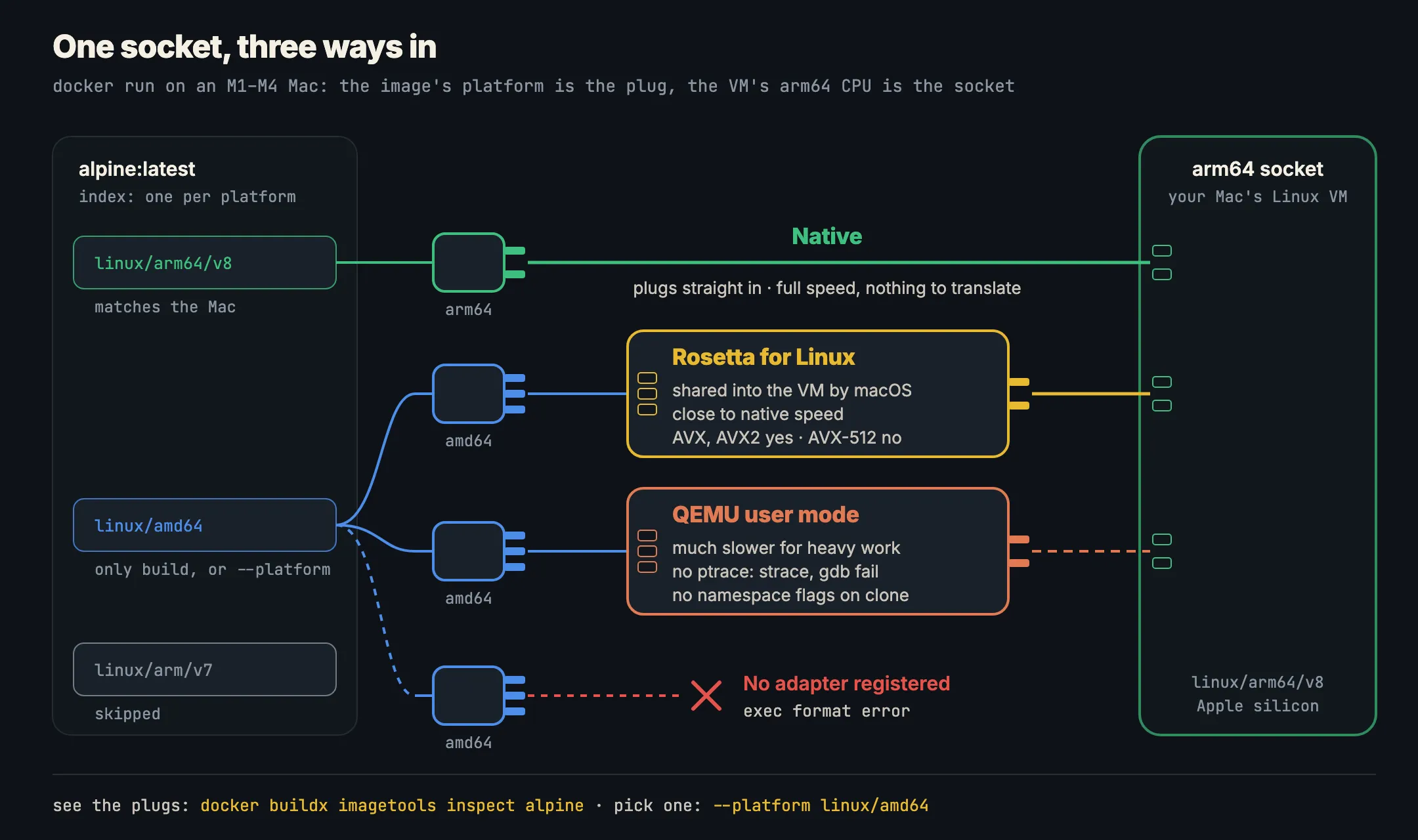
To see which platforms an image actually has, ask the registry without pulling anything:
docker buildx imagetools inspect alpineManifests:
Name: docker.io/library/alpine:latest@sha256:…
MediaType: application/vnd.docker.distribution.manifest.v2+json
Platform: linux/amd64
...
Platform: linux/arm64/v8Docker’s imagetools inspect reference shows the full output for alpine, which is built for seven platforms. If your image lists only linux/amd64, every Apple silicon Mac will run it under emulation. To check what you have locally after a pull:
docker image inspect -f '{{.Os}}/{{.Architecture}}' alpine
docker run --rm alpine uname -m      # aarch64 = native, x86_64 = emulated
Asking for amd64 on purpose
On one command: --platform
docker pull --platform linux/amd64 postgres:16
docker run --rm --platform linux/amd64 alpine uname -m
# x86_64
--platform works on pull, run, create and build. Use it when an image has both builds and you need the amd64 one, for example to reproduce a bug that only shows up on your x86 servers.
For a whole shell: DOCKER_DEFAULT_PLATFORM
export DOCKER_DEFAULT_PLATFORM=linux/amd64Docker’s CLI reference describes it as the “default platform for commands that take the --platform flag” (environment variables). It’s handy for a session where everything must be amd64. Don’t put it in your shell profile: every image you pull, including ones with perfectly good arm64 builds, will then run emulated.
For one service in Compose: platform:
services:
  legacy-api:
    image: example/legacy-api:2.3
    platform: linux/amd64
  db:
    image: postgres:16      # has arm64, stays native
The Compose spec says platform “defines the target platform the containers for the service run on” using os[/arch[/variant]] (Compose file reference). Setting it per service is better than the environment variable, because only the service that needs amd64 pays for emulation. More on Compose without Docker Desktop in Docker Compose on a Mac without Docker Desktop.
Rosetta vs QEMU: speed and correctness
Your Mac can’t run x86-64 code directly, so something inside the Linux VM has to translate it. The VM’s kernel spots an x86-64 program through binfmt_misc and hands it to whichever translator is registered. On a Mac there are two candidates.
Rosetta for Linux
Apple’s Virtualization framework can share Rosetta into an arm64 Linux VM. Apple’s documentation says this has worked since macOS 13, runs “Intel apps that run in an ARM Linux distribution”, and, from macOS 14, supports ahead-of-time caching that “can improve the performance of some X86 workloads” (Running Intel Binaries in Linux VMs).
- Speed: Docker called Rosetta’s x86-64 performance “nearly on par with native execution” when it made the feature generally available in Docker Desktop 4.25 (Docker blog).
- Correctness: Rosetta “translates all x86_64 instructions, including ones from the AVX and AVX2 instruction set, but it doesn’t support running AVX512 vector instructions” (About the Rosetta translation environment). Software that assumes AVX-512 without checking will crash.
- Installing it: on macOS 26 and earlier, Rosetta has to be installed (
softwareupdate --install-rosetta). Apple says that starting in macOS 27, “support for Intel binary translation for Linux apps is included in macOS”, with nothing to install.
QEMU user-mode emulation
QEMU is the general-purpose emulator engines fall back to when Rosetta isn’t available or isn’t switched on. It works on any host, but:
- Speed: Docker’s own docs warn that “emulation with QEMU can be much slower than native builds”, “especially for compute-heavy tasks like compilation and compression or decompression” (multi-platform builds).
- Correctness: QEMU’s user-mode docs list gaps that matter in containers: ptrace isn’t implemented, so
straceandgdbdon’t work on emulated programs;cloneflags that affect namespaces “are not supported”; and “differences between the host and guest memory models can cause issues” for software that relies on a particular memory model (QEMU user mode).
In practice: if amd64 containers are painfully slow, or a JVM, database or debugger misbehaves only on your Mac, check which translator your engine uses before anything else.
Turning Rosetta on
- Docker Desktop: Settings → General → “Use Rosetta for x86_64/amd64 emulation on Apple Silicon”. Docker’s settings page notes it’s “available with the Apple Virtualization framework VMM” (Docker Desktop settings).
- Other engines have their own switch; check the engine’s docs. Docker Desktop alternatives compared covers the main ones.
Build multi-arch images with buildx, and skip emulation
The real fix for your own images is to publish both builds under one tag. Then every Mac pulls arm64 and every x86 server pulls amd64, and nobody emulates anything at run time.
docker buildx build \
  --platform linux/amd64,linux/arm64 \
  -t ghcr.io/you/app:1.4 \
  --push .
That’s Docker’s documented command for a two-platform build (multi-platform builds), plus a tag and --push. A few things to know:
- Where the result goes. A multi-platform result needs an image store that can hold an index. Docker says Docker Desktop and Docker Engine 29.0+ use the containerd image store by default, which supports it; with a
docker-containerbuilder, the images aren’t loaded into the engine’s store, so push them to a registry instead. - Building the other architecture still emulates. Building
linux/amd64on your Mac runs the Dockerfile’sRUNsteps under Rosetta or QEMU. For compiled languages, cross-compiling in a native stage (Go’sGOARCH, Rust targets) is usually much faster than emulating the compiler. - Check the result with
docker buildx imagetools inspect ghcr.io/you/app:1.4. You should see bothlinux/amd64andlinux/arm64.
For third-party images that only ship amd64, check the project’s releases for a newer tag with arm64 before reaching for --platform.
How Kiri handles amd64 images
Kiri is an open-source container engine whose Mac app runs Docker commands in a small arm64 Linux VM. According to its docs:
- amd64 runs through Rosetta. macOS shares Rosetta for Linux into the VM over virtiofs, and the VM’s kernel hands every x86-64 program to it through
binfmt_misc. There’s nothing to set per image. On macOS versions that need it, install Rosetta withsoftwareupdate --install-rosetta. --platformis honoured ondocker pullanddocker run.- Without
--platform, it pulls arm64. If an image has no arm64 build but has an amd64 one, and Rosetta is installed, Kiri pulls amd64 and says so:… has no linux/arm64 image; using linux/amd64 through Rosetta. - One platform per tag. Kiri keeps one variant of each tag, so pulling
alpineforlinux/amd64replaces the arm64alpineyou had, and a later run that asks for the other platform pulls again.
docker pull -q --platform linux/amd64 alpine
docker image inspect -f '{{.Os}}/{{.Architecture}}' alpine   # linux/amd64
docker run --rm alpine uname -m                               # x86_64
The Docker for Mac page has the rest of the Mac story, and Kiri vs Docker Desktop compares the two side by side. If you’re moving over, see switching from Docker Desktop, or download Kiri.
In short
- The platform mismatch warning means you got an amd64 image on an arm64 Mac and it will run emulated. It’s not an error.
docker buildx imagetools inspect <image>lists the platforms an image really has, straight from the registry.- Ask for amd64 with
--platform linux/amd64,DOCKER_DEFAULT_PLATFORMfor a shell, orplatform:per Compose service. - Rosetta runs close to native speed and handles AVX and AVX2, not AVX-512. QEMU is much slower for heavy work and has no ptrace.
exec format errormeans no translator is registered: turn on Rosetta in your engine.- For your own images, build both with buildx and push one tag, so nobody has to emulate.