You typed docker compose up and got docker: 'compose' is not a docker command. (or docker: unknown command: docker compose), or you added -d and got unknown shorthand flag: 'd' in -d. Both mean the same thing: the docker program can’t find the Compose plugin. Compose isn’t built into docker. It’s a separate file that docker looks for in a short list of folders, and yours isn’t in any of them. The fix is to put the file in one of those folders, or to add its folder to the list. This post shows where docker looks and how to fix it on macOS, Linux and Windows.
New to some of the terms? Our container basics explain them: image layers, registries and containerd vs Docker.
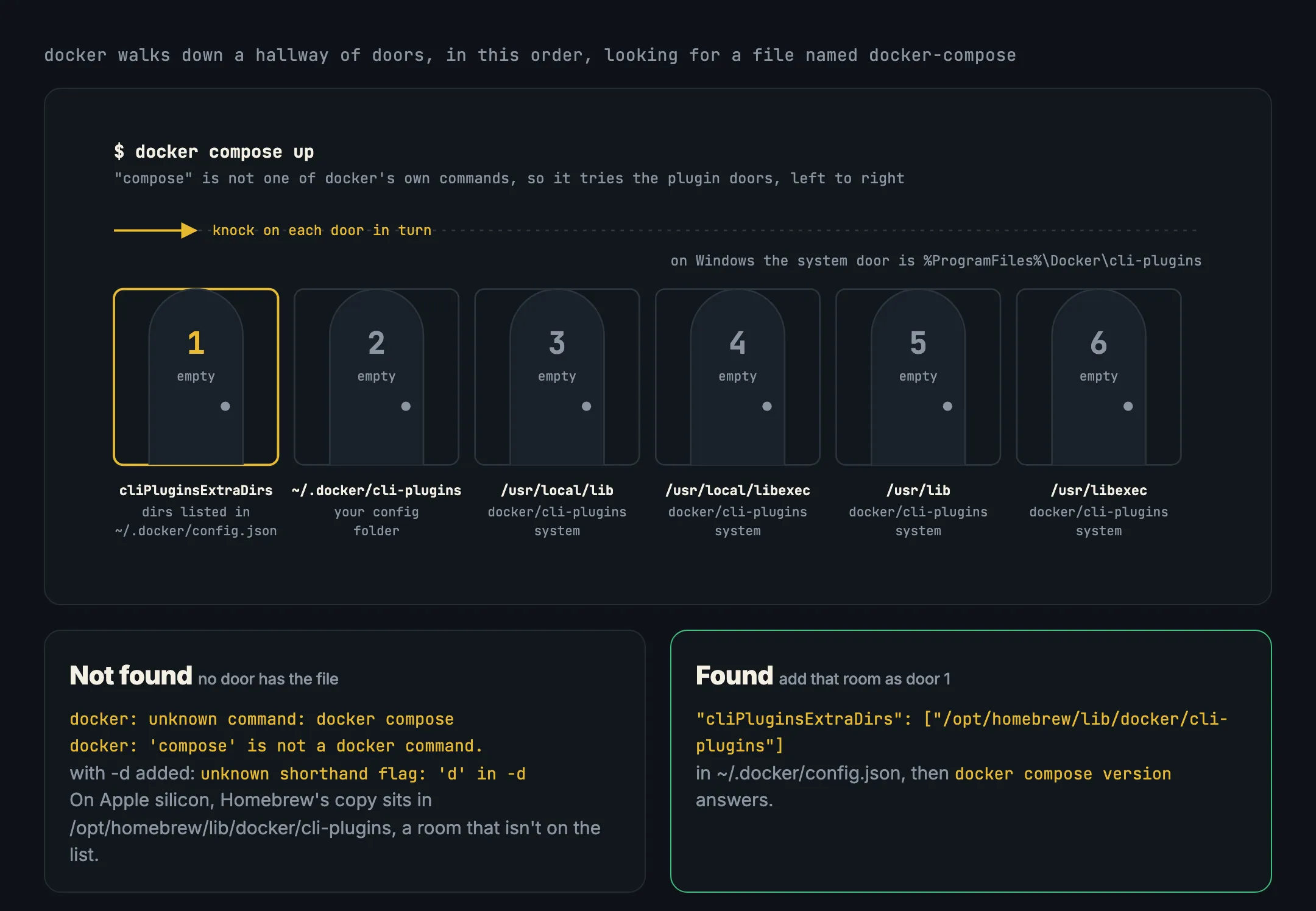
The three errors, exactly
The docker client has its own commands, such as run, ps and build. For anything else it looks for a plugin: a program named docker-<name> that it can run for you. docker compose is such a plugin. When docker finds no docker-compose file, it has nowhere to send the command.
What you see depends on your client’s version:
docker: unknown command: docker composeis the message from current clients. It comes from the root command in docker/cli’sdocker.go: when the plugin lookup fails, the usual unknown-command error is reported.docker: 'compose' is not a docker command.is how older clients word it. Same cause.unknown shorthand flag: 'd' in -dshows up when you add-d, as indocker compose up -d. The client doesn’t knowcompose, so it reads the rest of the line as its own options, anddockerhas no-dflag. The flag isn’t the problem. It’s just the first thing the client complains about.
Fix the plugin lookup and all three go away.
Compose v1 and v2: why there are two commands
Docker’s Compose history page explains the two generations:
- Compose v1 “was written in Python and invoked with
docker-compose”, with a hyphen. - Compose v2, “announced in 2020, is written in Go and is invoked with
docker compose”, with a space.
The same page says the supported versions today are Compose v2 and v5. The space form is a CLI plugin: a docker-compose file from Docker’s release page, placed where docker can find it, and run by docker when you type docker compose. The hyphen form is a standalone program on your PATH. Docker’s standalone install page calls the standalone binary “not recommended” and says to use it only when Docker Desktop or the plugin can’t be used.
So docker-compose up -d and docker compose up -d are two different installs, and one can work while the other fails. Docker Desktop installs the plugin for you, which is why this error shows up on machines without it: a Mac with Homebrew’s docker, a Linux server with the engine and CLI but no Compose plugin, or a Windows PC with only docker.exe.
Where the docker CLI looks for plugins
From docker/cli’s plugin manager, the search order is:
- The folders listed under
cliPluginsExtraDirsin~/.docker/config.json. - A
cli-pluginsfolder inside the CLI’s config folder,~/.docker/cli-pluginsby default. - The system folders.
On Linux and macOS the system folders are, in order (manager_unix.go):
/usr/local/lib/docker/cli-plugins
/usr/local/libexec/docker/cli-plugins
/usr/lib/docker/cli-plugins
/usr/libexec/docker/cli-plugins
On Windows there is one, %ProgramFiles%\Docker\cli-plugins (manager_windows.go). Docker’s reference says “by default, configuration file is stored in ~/.docker/config.json” (docker CLI reference), and the config folder moves if you set DOCKER_CONFIG, as Docker’s Linux install steps do. The plugin file must be named docker-compose (docker-compose.exe on Windows).
To see what you have, run:
ls ~/.docker/cli-plugins /usr/local/lib/docker/cli-plugins /usr/libexec/docker/cli-plugins /usr/lib/docker/cli-plugins 2>/dev/null
cat ~/.docker/config.json
which -a docker docker-compose
which -a docker matters: if another docker sits earlier on your PATH, such as a wrapper that changes DOCKER_CONFIG or an older client that predates plugins, it may not see the plugin you installed.
Fix it on macOS
Without Docker Desktop, install the docker client and Compose with Homebrew:
brew install docker docker-composeOn Apple silicon Macs, Homebrew’s docker-compose formula puts the plugin in /opt/homebrew/lib/docker/cli-plugins ($(brew --prefix)/lib/docker/cli-plugins), which isn’t on docker’s list. (On Intel Macs, brew --prefix is /usr/local, so the plugin lands in /usr/local/lib/docker/cli-plugins, already one of docker’s system folders, and the config below isn’t needed.) The formula’s own note says to add cliPluginsExtraDirs to ~/.docker/config.json. If you have no config file yet:
mkdir -p ~/.docker
cat > ~/.docker/config.json <<EOF
{
  "cliPluginsExtraDirs": [
    "$(brew --prefix)/lib/docker/cli-plugins"
  ]
}
EOF
If config.json already exists, don’t overwrite it. Open it and add the key next to what’s there. A trailing comma or other JSON mistake gives the same error, so keep the file valid.
You can also link the plugin into your own folder instead:
mkdir -p ~/.docker/cli-plugins
ln -sfn "$(brew --prefix)/lib/docker/cli-plugins/docker-compose" ~/.docker/cli-plugins/docker-compose
The whole setup, including an engine to run the containers, is in Docker Compose on Mac without Docker Desktop.
Fix it on Linux
Docker’s Compose plugin page for Linux says Docker Engine and the Docker CLI must already be installed, then gives two routes.
From Docker’s repository (the recommended one). Set up Docker’s package repository for your distribution first, then install the docker-compose-plugin package:
# Ubuntu and Debian
sudo apt-get update
sudo apt-get install docker-compose-plugin

# RPM-based distributions
sudo yum update
sudo yum install docker-compose-plugin
The page links a repository guide for each of Ubuntu, Debian, Raspberry Pi OS, CentOS, Fedora, RHEL, AlmaLinux, Oracle Linux and Rocky Linux. The package comes from that repository, so if you installed docker from somewhere else, you may need to add the repository before apt-get can find it.
Manual install. Docker notes that “manual installations don’t auto-update”. For your user:
DOCKER_CONFIG=${DOCKER_CONFIG:-$HOME/.docker}
mkdir -p $DOCKER_CONFIG/cli-plugins
curl -fSL https://github.com/docker/compose/releases/download/v5.6.0/docker-compose-linux-x86_64 -o $DOCKER_CONFIG/cli-plugins/docker-compose
chmod +x $DOCKER_CONFIG/cli-plugins/docker-compose
For every user, replace $DOCKER_CONFIG/cli-plugins with /usr/local/lib/docker/cli-plugins and run mkdir, curl and chmod +x with sudo. Replace v5.6.0 with the release you want, and x86_64 with your architecture (aarch64 on 64-bit ARM). v5.6.0 is the version in Docker’s example when we checked.
Fix it on Windows
Docker Desktop for Windows includes Compose (Compose README). If you run Docker’s engine without Desktop, it doesn’t: Docker’s binaries page says the Windows Server install lacks components such as buildx and Compose.
Download the Windows .exe from Compose’s release page and save it as docker-compose.exe in the Windows plugin folder, %ProgramFiles%\Docker\cli-plugins (create the folder if it isn’t there; this needs Administrator rights). A copy in .docker\cli-plugins under your user folder is found too, because that’s the config folder from the search order above. Docker’s standalone install page uses the same download for the hyphenated docker-compose.exe in $Env:ProgramFiles\Docker; we took the plugin folder from the docker/cli source and haven’t tested every Windows version, so confirm with the check below.
Check that it worked
docker compose version
# Docker Compose version v5.6.0
This only asks the plugin for its version, so it works with no engine running. It proves the plugin is found and nothing more. If it prints a version, the compose error is gone. If a later command says Cannot connect to the Docker daemon, that’s a different problem: the plugin works and no engine answers. See Cannot connect to the Docker daemon.
How Kiri handles it
Kiri is our open-source container runtime for Macs, Linux and Windows, in beta on all three. It brings its own docker CLI, Compose and buildx, so there’s no plugin to hunt for. On a Mac, Kiri’s setup adds its Compose and buildx to cliPluginsExtraDirs in ~/.docker/config.json (install docs): the same fix as above, done for you. On Linux, the full kiri package includes the docker CLI, Compose and buildx, while kiri-lite is the engine alone (Kiri on Linux). On Windows, setup installs the docker CLI, Compose and buildx too (Windows docs). kiri compose up always talks to Kiri, whichever docker context is selected (Compose on Kiri).
In short
docker: 'compose' is not a docker commandandunknown shorthand flag: 'd' in -dmeandockerfound nodocker-composeplugin file.- Compose v1 was
docker-compose, written in Python. Compose v2 and later isdocker compose, written in Go, and runs as a plugin. dockerlooks incliPluginsExtraDirs, then~/.docker/cli-plugins, then system folders such as/usr/local/lib/docker/cli-plugins.- macOS:
brew install docker-compose, then on Apple silicon add$(brew --prefix)/lib/docker/cli-pluginstocliPluginsExtraDirs. - Linux: install
docker-compose-pluginfrom Docker’s repository, or download the binary into~/.docker/cli-plugins. - Windows: put
docker-compose.exein%ProgramFiles%\Docker\cli-plugins. - Check with
docker compose version.