Your container starts fine, but apt-get update hangs, curl says “Could not resolve host”, or ping example.com answers “bad address”. The container has no way out, or it has a way out and no way to look up names. Those are two different problems, and one command tells you which one you have.
The quick answer: from inside the container, ping an IP address (1.1.1.1) and then a name. If the IP works and the name fails, it’s DNS: look at /etc/resolv.conf, a --dns override, a proxy or a VPN. If the IP fails too, the route is shut: look at the network mode, the host’s forwarding and firewall, or a VPN. If both pings work but downloads or TLS handshakes still hang, check the proxy and the MTU. Each step below has a check and a fix, and there’s a script to run them all at the end.
New to the moving parts? containerd vs Docker explains what the engine is, and Use your Docker commands with Kiri shows the same commands on Kiri.
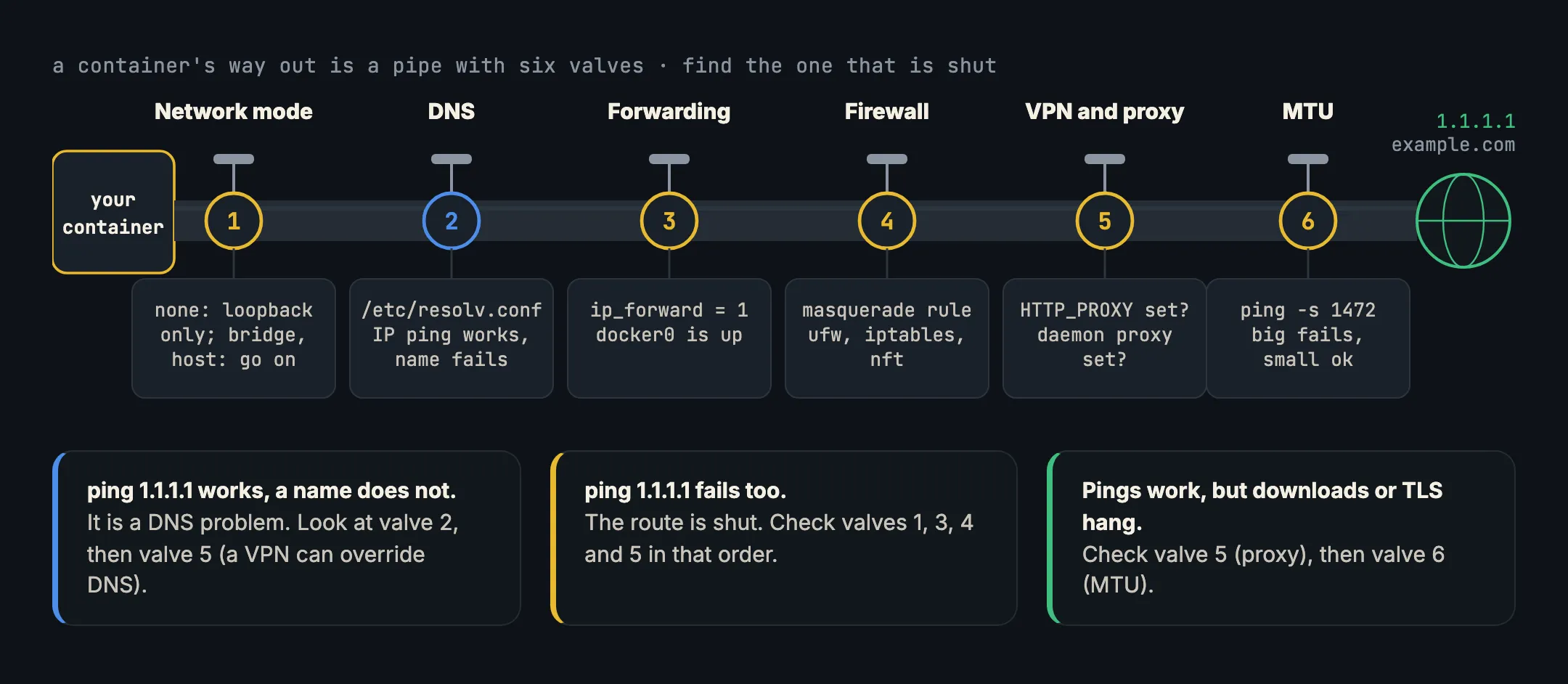
Step 1: Can it reach an IP, or only fail on names?
Use a throwaway container, so nothing in your own image gets in the way. It runs on the default bridge network, so it tells you whether the engine as a whole has a way out; if it works while your own container fails, the problem is that container’s own settings (steps 2, 3, 5 and 6). To test with your container’s network, add its --network to these commands.
docker run --rm alpine ping -c 2 1.1.1.1        # by IP: tests the route
docker run --rm alpine ping -c 2 example.com # by name: tests DNS too- IP works, name fails: DNS. Go to steps 3 and 4, and step 5 if you are on a VPN.
- IP fails too: the route. Go to steps 2, 5, 7 and 8.
- Both work, but your app still fails or downloads hang: the problem is in the app, its proxy settings or the MTU. Go to steps 5 and 6 (and steps 2 and 3 if you ran the check on the default bridge rather than your container’s network).
1.1.1.1 is a public address that normally answers ping. If your network blocks ping, try docker run --rm alpine nc -zv -w 3 1.1.1.1 80 instead; if it connects, the route works.
Step 2: Is the container on a network at all?
Docker gives every container a network mode. Check yours:
docker inspect -f '{{.HostConfig.NetworkMode}}' <container>none is meant to “completely isolate the networking stack of a container”: only a loopback interface exists, so nothing leaves. If you see none (or a Compose network_mode: none), that’s the whole answer; remove it. bridge, the default, and host both give the container a way out. On a bridge network, outbound traffic is masqueraded, so outside hosts see only the host’s IP address. That detail matters in step 7.
Step 3: What does /etc/resolv.conf say?
The file inside the container tells you which DNS server it asks:
docker run --rm alpine cat /etc/resolv.confPer Docker’s networking docs, a container uses the same DNS servers as the host by default. On the default bridge network it gets a copy of the host’s /etc/resolv.conf. On a network you created, it uses Docker’s embedded DNS server at 127.0.0.11, which passes outside names on to the resolvers the host is configured with.
What to look for:
- A
nameserverthat only the host can reach, for example a VPN’s or office’s internal resolver the container’s route doesn’t cover. Names fail, IPs work. - A
nameserveron127.xother than127.0.0.11.127.0.0.11is normal on user-defined networks (Docker’s embedded DNS), and on bridge networks Docker normally strips host loopback entries rather than copying them. Any other127.xaddress, for example from--dns=127.0.0.1,daemon.jsonor a bind-mounted/etc/resolv.conf, points at the container’s own loopback, where nothing answers. - An empty file or no
nameserverline, so there is nobody to ask.
To confirm, try a public resolver. If it works, your default one is the problem.
docker run --rm --dns 1.1.1.1 alpine nslookup example.comStep 4: Override DNS on purpose
If step 3 pointed at the DNS server, set one explicitly. For one container, use --dns (repeat it for more than one server):
docker run --rm --dns 1.1.1.1 --dns 8.8.8.8 alpine nslookup example.comFor every container, set dns in the daemon’s /etc/docker/daemon.json on Linux. See the dockerd reference:
{ "dns": ["1.1.1.1", "8.8.8.8"] }Then sudo systemctl restart docker. Two limits from the docs: --dns isn’t supported with --network container:<name>, and entries in the host’s /etc/hosts aren’t copied into containers, so a name that only your host’s /etc/hosts knows needs --add-host.
Step 5: A proxy or a VPN is in the way
On a corporate network, traffic may only leave through a proxy, and a proxy has three separate settings that people mix up:
- The daemon’s proxy is used for pulling images. Docker’s daemon proxy page shows a
proxiesobject indaemon.json(http-proxy,https-proxy,no-proxy) or a systemd drop-in,/etc/systemd/system/docker.service.d/http-proxy.conf, withEnvironment="HTTP_PROXY=…"lines. Check it withsudo systemctl show --property=Environment docker. Docker Desktop ignores thedaemon.jsonproxy and has its own setting. - The containers’ proxy is separate. Per the CLI proxy page, a
proxies→defaultblock in~/.docker/config.json(httpProxy,httpsProxy,noProxy) setsHTTP_PROXYand friends in new containers. It doesn’t change containers that already exist. - The proxy inside your app or package manager, such as an
.npmrcoraptsetting.
See what the container actually got:
docker run --rm alpine env | grep -i proxyA wrong value here, such as an old proxy, or localhost, which inside a container means the container itself, breaks anything that honours it. A VPN can break the route or the DNS server list in the same way: names that only the VPN resolves aren’t known to a container that ignores it. Disconnect the VPN, repeat step 1, and you know.
Step 6: Is it the MTU?
Small packets work, big ones vanish: pings succeed, curl connects and then hangs on a TLS handshake or a download. That points at the MTU, the largest packet a link carries. A VPN or tunnel often lowers it below the usual 1500. Compare a small and a large ping:
docker run --rm alpine ping -c 1 -s 100  1.1.1.1
docker run --rm alpine ping -c 1 -s 1472 1.1.1.1
A 1472-byte payload makes a 1500-byte packet. Alpine’s ping can’t forbid fragmentation, so for a strict test use iputils ping -M do on a Linux host. If the second fails and the first works, lower the container side. For the default bridge, dockerd has an mtu option in /etc/docker/daemon.json (restart Docker after changing it); for a network you create, the bridge driver option is com.docker.network.driver.mtu:
{ "mtu": 1400 }docker network create --opt com.docker.network.driver.mtu=1400 mynetPick a value at or below what your VPN reports for its own interface.
Step 7: The Linux host’s forwarding and firewall
On Linux, Docker relies on the host to forward and masquerade packets from the docker0 bridge. Docker’s packet filtering page says what to expect:
- Docker enables
net.ipv4.ip_forwardat startup if it’s off. Check it:sysctl net.ipv4.ip_forwardshould print1. Something that resets it (a hardening script, a network manager) breaks every container’s route. - If you set
iptablestofalseindaemon.json, containers in bridge networks “will not be able to access internet hosts by masquerading.” Remove that line and restart Docker. - With firewalld running, Docker creates a
dockerzone and adds its bridge interfaces to it, so look there if firewalld rules changed. - ufw and Docker conflict, and the page says Docker’s own bridge rules are required and shouldn’t be edited by hand. Setting
"iptables": falseor adding broadDROPrules inDOCKER-USERcan cut off outbound container traffic. - Look at the rules with
sudo iptables -t nat -S POSTROUTING(orsudo nft list ruleset); there should be a masquerade rule for the bridge’s subnet. - Check that nothing else uses the subnet of
docker0withip route. Thebipanddefault-address-poolsoptions indaemon.jsonmove Docker’s bridge.
Check the bridge itself with ip link show docker0: the flags inside <...> should include UP. state DOWN with NO-CARRIER is normal when no container is running on the default bridge; user-defined networks have their own br-<id> bridges.
Step 8: Docker Desktop and other Mac engines
On a Mac there is a Linux VM between you and the container, so step 7’s host checks (sysctl, iptables, docker0) don’t apply on the Mac; macOS doesn’t use iptables at all. The container-side checks above still work. Then check the engine’s own proxy settings.
How Kiri’s network and DNS work
On a Mac, Kiri runs containers in its own Linux VM (on Linux it runs directly on the host’s kernel with no VM, and on Windows in WSL2). Because it speaks the Docker Engine API, the container-side checks and flags (--dns, --add-host) in steps 1 to 6 work the same way, though Kiri has no dockerd or /etc/docker/daemon.json. The parts that differ are in Kiri’s network, settings and how-it-works docs, and this section describes a Mac unless it says otherwise:
- The way out. Containers sit on a bridge in the VM,
kiri0, with172.17.0.0/16for the default network, unless your Mac already routes that subnet, in which case Kiri picks another. The agent in the VM gets an address from Apple’s NAT over DHCP and masquerades each bridge onto it. Traffic leaves through macOS’s own networking, so, per the docs, VPNs need no setup. - DNS. On the default bridge, names of other containers don’t resolve, as in Docker. On a network you create, Kiri runs Docker’s embedded DNS on the bridge’s gateway, port 53, and sends every other name to the VM’s resolver, or to the servers you give with
--dns.--dns-search,--dns-optionand--add-hostwork too. Since 0.1.18, when the VM’s own resolver stops answering, failed lookups go through the Mac instead, anddocker buildsteps use the Mac’s DNS. - Proxy. Settings → Network (saved in
~/.kiri/proxy.json) takes the macOS proxy settings, a custom one, or none. It’s used for pulling and pushing images; Pass to containers is off by default, and when on, new containers getHTTP_PROXY,HTTPS_PROXYandNO_PROXY. A proxy on your Mac ishost.docker.internalfrom inside a container. Kiri can’t follow a PAC file: choose Custom and enter the proxy. - The Mac from a container.
host.docker.internalreaches services on your Mac’s loopback, so a dev server onlocalhost:5173ishost.docker.internal:5173inside the container. - Windows (beta). Container traffic leaves through WSL’s network, and a proxy on Windows’ own
127.0.0.1is carried through for you.
So if a Kiri container has no internet, the questions are the same: IP or name, resolv.conf, docker inspect for the network mode, and Settings → Network for a proxy. Kiri’s own log is the next place to look:
kiri diag logs --engine -n 100       # the engine's last 100 lines
kiri diag report --send              # redacted logs and crash reports; sends it and prints an ID
Both are in Kiri’s command reference; on Linux, the service log needs sudo HOME=/var/lib/kiri-daemon kiri diag logs --engine. Kiri is in beta, so if a container with a clean resolv.conf and no proxy still can’t reach 1.1.1.1, run kiri diag report --send, open Feedback in Kiri’s window, and quote the ID it prints.
A check script to copy
This runs every container-side check in order and prints what it finds. On Linux it adds the host checks. It changes nothing.
#!/bin/sh
img=alpine
echo "== 1. IP (route)";        docker run --rm $img ping -c 2 -W 3 1.1.1.1
echo "== 2. name (DNS)";        docker run --rm $img ping -c 2 -W 3 example.com
echo "== 3. resolv.conf";       docker run --rm $img cat /etc/resolv.conf
echo "== 4. public DNS works?"; docker run --rm --dns 1.1.1.1 $img nslookup example.com
echo "== 5. proxy variables";   docker run --rm $img env | grep -i proxy || echo "none set"
echo "== 6. MTU small / large"; docker run --rm $img ping -c 1 -s 100 -W 3 1.1.1.1
                                docker run --rm $img ping -c 1 -s 1472 -W 3 1.1.1.1
if [ "$(uname)" = "Linux" ]; then
  echo "== 7. host";            sysctl net.ipv4.ip_forward
                                ip link show docker0 2>/dev/null | head -1
                                sudo iptables -t nat -S POSTROUTING 2>/dev/null | grep -i masq
                                systemctl show --property=Environment docker 2>/dev/null
fi
Read it top to bottom. Success at 1 and 4 but failure at 2 means your default DNS server; failure only on the large ping at 6 means the MTU; no MASQUERADE line on Linux means the host isn’t masquerading for the bridge (or it uses nftables: try sudo nft list ruleset | grep -i masquerade).
In short
- Ping an IP, then a name from inside a container. IP works and the name fails: DNS. IP fails too: the route.
- Check
docker inspectfornone, then/etc/resolv.conf, then--dnsor"dns"indaemon.json. - Proxies come in three places: the daemon’s, the containers’ (
~/.docker/config.json) and your app’s. - Small pings that work and large ones that fail mean the MTU; a VPN is a common cause.
- On Linux check
net.ipv4.ip_forward,docker0and the masquerade rule; don’t turn Docker’s iptables off. - In Kiri on a Mac, containers leave through macOS’s networking, so VPNs need no setup; set a proxy in Settings → Network and read
kiri diag logs(on Linux,sudo HOME=/var/lib/kiri-daemon kiri diag logs --engine).
Related: when the CLI can’t even reach the engine, see Cannot connect to the Docker daemon.